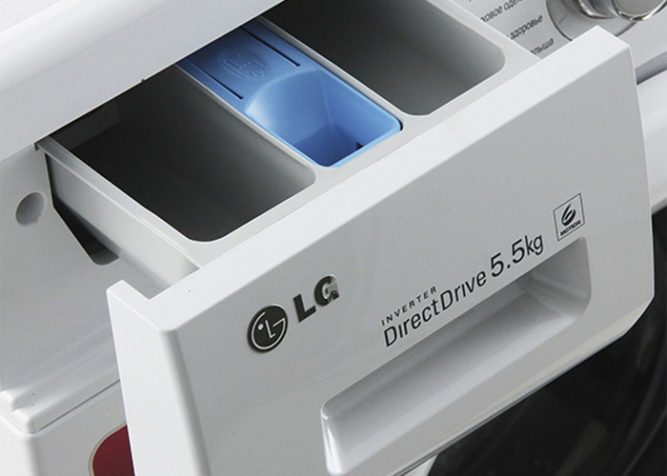
Трехфазные стиральные машины
Стиральные машины с питающим напряжением 380в выпускаються в основном для промышленного применения.
Читать далее
Стиральные машины с питающим напряжением 380в выпускаються в основном для промышленного применения.
Читать далее

Чтобы вещи сияли чистотой, помимо стиральной машины нужна бытовая химия: порошки, отбеливатели и пр. Для ухода за самой машиной часто рекомендуют средства от накипи. В каком количестве эти средства нужны и нужны ли?
# Подключаем ПК к проводной сети перед установкой дебиан. Устанавливаем Debian с XFCE, с добавлением пользователя klipper/klipper, root/admin. sudo apt-get update sudo apt-get upgrade # Добавляем пользователя klipper в файл su затем пароль от root пользователя sudo nano edit /etc/sudoers # Должно выглядеть так # User privilege specification root ALL=(ALL:ALL) ALL klipper ALL=(ALL:ALL) ALL# Добавляем репозитории для системы Debian, приводим к виду ниже. sudo nano /etc/apt/sources.list # deb cdrom:[Debian GNU/Linux 11.5.0 _Bullseye_ - Official amd64 DVD Binary-1 20220910-10:40]/ bullseye contrib main # deb cdrom:[Debian GNU/Linux 11.5.0 _Bullseye_ - Official amd64 DVD Binary-1 20220910-10:40]/ bullseye contrib main deb http://security.debian.org/debian-security bullseye-security main contrib deb-src http://security.debian.org/debian-security bullseye-security main contrib # bullseye-updates, to get updates before a point release is made; # see https://www.debian.org/doc/manuals/debian-reference/ch02.en.html#_updates_and_backports # A network mirror was not selected during install. The following entries # are provided as examples, but you should amend them as appropriate # for your mirror of choice. # deb http://deb.debian.org/debian/ bullseye-updates main contrib deb-src http://deb.debian.org/debian/ bullseye-updates main contrib # add deb http://deb.debian.org/debian bullseye main deb-src http://deb.debian.org/debian bullseye main # add wifi mt7601u по необходимости. deb http://ftp.de.debian.org/debian/ stretch main non-free deb-src http://ftp.de.debian.org/debian/ stretch main non-free # Устанавливаем git с помошью команды sudo apt-get install git -y # Отключаем сон sudo systemctl mask sleep.target suspend.target hibernate.target hybrid-sleep.target # Добавляем программу net-tools ( https://itisgood.ru/2019/07/12/kak-ustanovit-nedostajushhuju-komandu-ifconfig-v-debian/ ). sudo apt install net-tools -y # Выполняем команды sudo apt-get update sudo apt-get upgrade sudo apt-get install firmware-ralink firmware-misc-nonfree wireless-tools wpasupplicant - устанавливаем wifi драйвер ( https://nemcd.com/2019/10/kak-podklyuchit-wi-fi-linux/ ). sudo modprobe mt7601u - подгрузить нужный драйвер sudo reboot now - выполняем перезагрузку. sudo ifconfig - проверяем сетевые подключения, должен появиться наш wlan0, если видим wlx1cbfce9b1d87 или похожее выполняем команду ниже для сброса имени адаптера sudo ln -s /dev/null /etc/udev/rules.d/80-net-setup-link.rules - ( https://askubuntu.com/questions/826325/how-to-revert-usb-wifi-interface-name-from-wlxxxxxxxxxxxxx-to-wlanx ) sudo reboot now - выполняем перезагрузку. После должен появится наш адаптер wifi с именем wlan0. # Подключаемся к wifi сети. sudo nmtui # Выбираем Activate a connection. Выбираем нашу сеть WIFI и подключаемся к ней введя пароль. # Проверяем ip для сети wifi командой sudo ifconfig # Переподключаемся к wifi сети через SSH. # Добавляем KIAUH ( https://github.com/th33xitus/kiauh ). cd ~ - переходим в корневой каталог sudo git clone https://github.com/th33xitus/kiauh.git - копируем KIAUH ./kiauh/kiauh.sh - запускаем KIAUH # Выполняем установку klipper в Debian. Выбираем 1 ( 1 [Install]) Установка программ. Выбираем 1 ( Firmware & API: 1) [Klipper] ). Выбираем 1 ( 1) [Python 2.7] (recommended)) Выбираем 1 ( Количество принтеров для программы Klipper 1 принтер) и соглашаемся " Y ". Выбтраем " Y " добавим пользователя klipper в группу. ( ###### Add user 'klipper' to group(s) now? (Y/n):) Далее ставим Moonraker выбрав цифру 2. ( Firmware & API: 2) [Moonraker]), подтверждаем " Y ". Далее ставим Fluidd выбрав цифру 4. ( Klipper Webinterface: 4) [Fluidd]), Подтверждаем дополнительные макросы ( Add the recommended macros? (Y/n): " Y ".) Webcam Streamer: 10) [MJPG-Streamer] - 10-ый пункт не работает в версии для ПК (Function currently disabled! Sorry!), будем ставить другой сервис для работы с web камерами. На этом установка klipper частично законченна, проверяем web интерфейс. sudo reboot now - перезагружаемся вводим ваш IP в строку браузера вашей сети. Открывается панель Klipper. Устанавливаем motioneye в Debian 11 для видеонаблюдения за печатью с помошью web камеры. ( https://github.com/motioneye-project/motioneye/wiki/Installation ). Для подключения к web камере в строке браузера вводим http://ваш IP:8765. Первый вход пользователь admin. sudo apt-get install motion ffmpeg v4l-utils -y sudo systemctl stop motion sudo systemctl disable motion sudo apt-get install python2 curl -y sudo curl https://bootstrap.pypa.io/pip/2.7/get-pip.py --output get-pip.py sudo python2 get-pip.py sudo apt-get install python-dev-is-python2 python-setuptools libssl-dev libcurl4-openssl-dev libjpeg-dev zlib1g-dev libffi-dev libzbar-dev libzbar0 -y sudo pip install motioneye sudo mkdir -p /etc/motioneye sudo cp /usr/local/share/motioneye/extra/motioneye.conf.sample /etc/motioneye/motioneye.conf sudo mkdir -p /var/lib/motioneye sudo cp /usr/local/share/motioneye/extra/motioneye.systemd-unit-local /etc/systemd/system/motioneye.service sudo systemctl daemon-reload sudo systemctl daemon-reload sudo systemctl start motioneye sudo pip install motioneye --upgrade sudo systemctl restart motioneye sudo reboot now в строке браузера вводим http://ваш IP:8765. Первый вход пользователь admin. Добавляем камеру нажав в верхнем углу add camera. Отключаем фиксацию движения в поле Motion Detection ставим OFF. Получаем ссылку на стиминг видео в поле Video Streaming нажав Streaming URL. Это ваш IP адрес:8081. Копируем его и идем в klipper В klipper нажимаем настройки, камеры, добавить камеру, Camera Type-Local V4L2 Camera, Camera-UVC Camera, присваиваем имя камере, Тип потока: Адаптивный MJPEG или MJPEG-поток, в поле URL камеры вставляем нашу строку http://ваш IP:8081 нажимаем сохранить. Небольшие настройки motioneye: Frame Rate 20 или 25. Streaming Frame Rate 20 или 25. Streaming Quality 50. Video Resolution на ваше усмотрение. Text Scale 3. Добавить пароль для admin и user на ваше усмотрение. После каждого изменения прожать APPLY. ------------------------------------------------------- Устанавливаем PrusaSlicer в Debian. При наличии рабочего окружения. Скачать zip архив с сайта https://www.prusa3d.com/page/prusaslicer_424/ Распаковать в папке Download, будет несколько файлов Нас интересует PrusaSlicer-2.5.0+linux-x64-GTK3-202209060725.AppImage для примера. В терминале набрать cd Downloads. После вводим ls отображаются наш файл PrusaSlicer-2.5.0+linux-x64-GTK3-202209060725.AppImage Далее вводим chmod a+x PrusaSlicer-2.5.0+linux-x64-GTK3-202209060725.AppImage делаем файл исполняемым. Для запуска программы из папки Downloads вводим ./PrusaSlicer-exact-file-name.AppImage На рабочем столе создать ярлык до программв слайсера. flatpak install flathub com.prusa3d.PrusaSlicer flatpak run com.prusa3d.PrusaSlicer
PrusaSlicer can be installed on Linux as a Flatpak through
Flathub. To use it, you must first install Flatpak and add the Flathub repository to the list of remotes. To do so, it is best to follow the steps here: Flathub Quick Setup Page.
sudo apt install flatpak
sudo apt install gnome-software-plugin-flatpak # Adds Flatpaks to the Software center (not required)
flatpak remote-add --if-not-exists flathub https://dl.flathub.org/repo/flathub.flatpakrepo
Than restart your system.
To verify that Flatpak is properly installed on your system, you can run
flatpak --version
# prints: Flatpak *.*.* on success
Once Flatpak is properly installed and the Flathub repository is added, you can install PrusaSlicer via your distribution software center if your distribution allows it. Alternatively, you can use the install button here: Flathub or install it via terminal by running:
flatpak install flathub com.prusa3d.PrusaSlicer
After the installation, PrusaSlicer will be integrated into your desktop environment, and you can run it as you would any other application. If you prefer using the terminal, you can do:
flatpak run com.prusa3d.PrusaSlicer
to run PrusaSlicer.
You need superuser privileges to install Flatpak. However, you can install PrusaSlicer without it. You can use the —user option to run all Flatpak commands and install PrusaSlicer for the current user without requiring sudo. Remember to add the Flathub repository for the current user. In the end, this boils down to:
flatpak remote-add --user --if-not-exists flathub https://dl.flathub.org/repo/flathub.flatpakrepo flatpak
install --user flathub com.prusa3d.PrusaSlicer
To try the prerelease version of PrusaSlicer, you’ll need to use Flatpak from the terminal. Add the Flathub-beta repository (you only need to do this once):
flatpak remote-add --if-not-exists flathub-beta https://flathub.org/beta-repo/flathub-beta.flatpakrepo
To install the latest version of PrusaSlicer:
flatpak install flathub-beta com.prusa3d.PrusaSlicer # for the prerelease versions
To run PrusaSlicer from the terminal, you can do:
flatpak run com.prusa3d.PrusaSlicer//beta # for the prerelease versions
Installation issue
If you have issues with the installation, ensure that Flatpak is installed:
flatpak --version
# prints: Flatpak *.*.* on success
and that the Flathub remote is properly set up
flatpak remotes -d
#prints: flathub Flathub https://dl.flathub.org/repo/ ... system ...
I cannot access some files/directories
Flatpak limits the files and directories that an application can access. By default PrusaSlicer can access files in the $HOME directory, /run/media and /media (to allow interaction with USB drives).
If you have a remote drive mounted elsewhere, or simply a symlink to a non-standard location you want to access from within PrusaSlicer, you must allow it to do so.
The most straightforward approach is to install Flatseal (see How do I install Flatseal?) and enable the necessary access permissions there. Open Flatseal, navigate to PrusaSlicer -> Filesystem -> Other files and add in locations you need. Alternatively, you can simply check the option All system files, but this is not recommended.
PrusaSlicer is in light mode even though my system theme is dark – Help! PrusaSlicer is in light mode, and it’s burning my eyes!
PrusaSlicer aims to always use dark theme if the host system uses it. The PrusaSlicer Flatpak determines if the host system is using a specific theme during installation. If it does it tries to download the appropriate Flatpak version of the theme. This may not always work due to differences between Linux distributions and the variety of available themes. Nevertheless, you should always make sure to switch the theme of your system first and reinstall the PrusaSlicer Flatpak afterwards. The re-installation is performed by running:
flatpak uninstall com.prusa3d.PrusaSlicer
flatpak install com.prusa3d.PrusaSlicer
If for any reason the application is still in light mode (which may very well happen), there is a fallback option. First, install Flatseal (see How do I install Flatseal?), and then navigate to PrusaSlicer -> Environment -> Variables and set
PRUSA_SLICER_DARK_THEME=true
I want to switch to a language, but the language is not listed
By default, Flatpak will not download all the language options, but you can configure Flatapak to download and install all the languages you want. For example, to enable the download of Czech locales for all your Flatpak applications you can do:
flatpak config --set extra-languages "cs_CZ"
You will have to reinstall PrusaSlicer afterward. The re-installation is performed by running:
flatpak uninstall com.prusa3d.PrusaSlicer
flatpak install com.prusa3d.PrusaSlicer
How do I install Flatseal?
To install Flatseal you can do:
flatpak install flathub com.github.tchx84.Flatseal
assuming Flatpak is already installed on your system and the Flathub repository is correctly set up.
----------------------------------------- Установка драйверов для Debian 11 и старые видеокарты.
( https://www.youtube.com/watch?v=gOwMe_UYMdM&ab_channel=NeonCipher ).

lspci -nnk | grep -i -EA3 "3d|display|vga" xrandr sudo apt-get update sudo apt-get dist-upgrade sudo apt-get install xserver-xorg-video-ati sudo apt-get install xserver-xorg-video-amdgpu sudo nano /etc/apt/sources.list (main contrib non-free)
sudo apt-get update sudo apt-get install firmware-amd-graphics libgl1-mesa-dri How to install Snap & Snap-store on Debian 11 Bullseye Linux https://www.how2shout.com/linux/how-to-install-snap-snap-store-on-debian-11-bullseye-linux/
В Клиппере отредактировать файл для карты памяти своей платы. printer.cfg [virtual_sdcard] path: /home/klipper/printer_data/gcodes вместо path: ~/gcode_files


--------------------------------------
ЕСЛИ ОШИБКА КИАУХ PermissionError: [Errno 13] Permission denied: '/home/??????/kiauh/kiauh.cfg'

sudo chown -R klipper:klipper /home/klipper/kiauh
sudo chmod -R u+rwX,go+rX /home/klipper/kiauh
sudo rm -f /home/klipper/kiauh/kiauh.cfg
cd /home/klipper
./kiauh/kiauh.sh

A
A flatpak package is available in Debian 10 (Buster) and newer. To install it, run the following as root:
If you are running GNOME, it is also a good idea to install the Flatpak plugin for GNOME Software. To do this, run:
Flathub is the best place to get Flatpak apps. To enable it, download and install the Flathub repository file or run the following in a terminal:
To complete setup, restart your system. Now all you have to do is install apps!
Последние опубликованные статьи.